How to enable/disable SynapticsTouchpad on Linux Xorg systems
Once in linux, you may required to disable touch pad for a while when you are using keyboard. Unlike in Windows, you may not have specific propitiatory drivers installed to enable or disable it. Below are two options.
First see the list of all Xorg input devices configured and make sure your touch pad is properly working.
First Method:
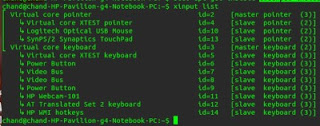
Identify your id from above list. For example my touch pad's id is 13. So now I can enable or disable it.
To enable:
To disable:
Second method:
By using simple UI applet program.
If your compatible package manager is apt[eg default on Ubuntu and other Debian systems]
You can open newly installed app from
You'll see below icon :


Enjoy!
First see the list of all Xorg input devices configured and make sure your touch pad is properly working.
First Method:
xinput list

Identify your id from above list. For example my touch pad's id is 13. So now I can enable or disable it.
To enable:
xinput set-prop 13 'Device Enabled' 1
To disable:
xinput set-prop 13 'Device Enabled' 0
Second method:
By using simple UI applet program.
If your compatible package manager is apt[eg default on Ubuntu and other Debian systems]
sudo add-apt-repository ppa:atareao/atareao
sudo apt-get update
sudo apt-get install touchpad-indicator
You can open newly installed app from
Applications->Accessories->Touchpad-indicator
You'll see below icon :

Enjoy!


Comments
Post a Comment